
Take advantage of features and controls available on your new computer to set up your child’s device for learning and restrict access as needed.
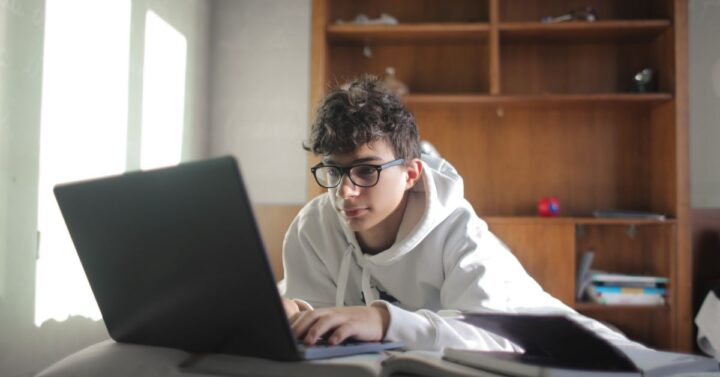
Handing a kid a new laptop can feel both exciting and overwhelming. Most computers arrive loaded with features that may confuse children or distract them from schoolwork. With a little setup upfront, you can turn your kid’s device into a focused tool that supports learning without inviting chaos.
Create Separate Accounts for Each User
If multiple kids will share the computer, start by setting up a user login for each child so you can manage access. Give each profile a school-appropriate background, and set up folders labeled for subjects or weekly projects.
This will save time in the future when your kids need to track down assignments that would otherwise disappear into mystery folders. Learning how to set up a new computer for educational use only begins with building digital boundaries that guide focus and reduce clutter. Personalizing each login also gives them a little excitement about using something that feels made just for them.
Remove Distractions and Disable Unnecessary Features
Parents who understand how to set up a new computer for educational use only know that it starts by taking away the noise. Without bright icons and autoplay videos calling out, kids can focus on schoolwork and develop better concentration skills.
Delete any random games, shopping tools, and clickbait apps that usually come preinstalled on computers. Clean up the taskbar, and turn off notifications that might buzz or pop up.
Set Up Parental Controls
Dig into the built-in parental controls to customize what your child can access. You’ll often find screen time limits, app filters, and the ability to approve websites before they load. You don’t need a brand-new computer to find these kinds of features—you can still set up parental controls on a refurbished device.
Install Educational Tools and Creative Programs
You can load the device with free apps that support creative thinking, so the kids have a place to build, code, or design without having to pay for expensive subscriptions. You can also bookmark browser-based platforms with study guides and other learning resources recommended by their teachers.
Show Them How To Back Up Files
Instruct your kids to save their work often, and teach them how to back up files. Show them how to name folders and use consistent formats so things stay organized and easy to find. Trust grows when they know how to recover their own projects without tears or panic.
A few smart choices now can keep your kids curious, focused, and ready to use their personal device for learning instead of play. Start small, stay consistent, and give their computer the same attention you’d give to any other important learning space.